How to claim your real estate business on ChatGPT
An eight-step guide for real estate agents, teams and brokerages to find a business listing, verify it and keep its details current.
ChatGPT Business Hub lets eligible real estate businesses claim a profile and manage the information they provide to ChatGPT. For a brokerage or team, that can mean keeping the correct website, business description and contact details available when a buyer or seller looks you up. OpenAI’s Business Hub overview
Before you start
Use the ChatGPT account you want to manage the business from. Have the business website ready and make sure you can access the listed phone, email or domain settings if asked to verify.
Decide whose profile you’re claiming. If you’re an agent on a team or at a brokerage, check who manages that business profile. If you own a separate real estate business, search for that business. You need to own the business or have permission to represent it.
How to claim your business on ChatGPT
1. Open Business Hub
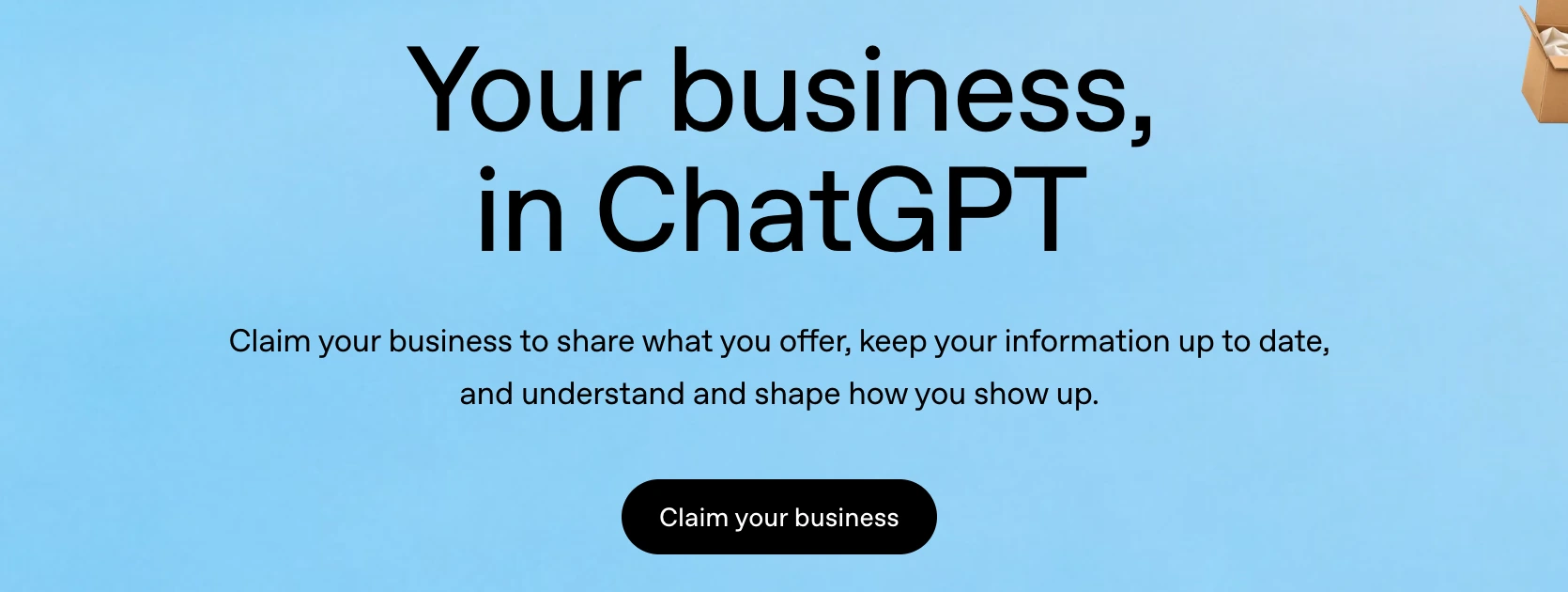
Open ChatGPT Business Hub on the web and sign in. You can also open it from the ChatGPT sidebar or use Claim your business on OpenAI’s business page.
2. Find your business
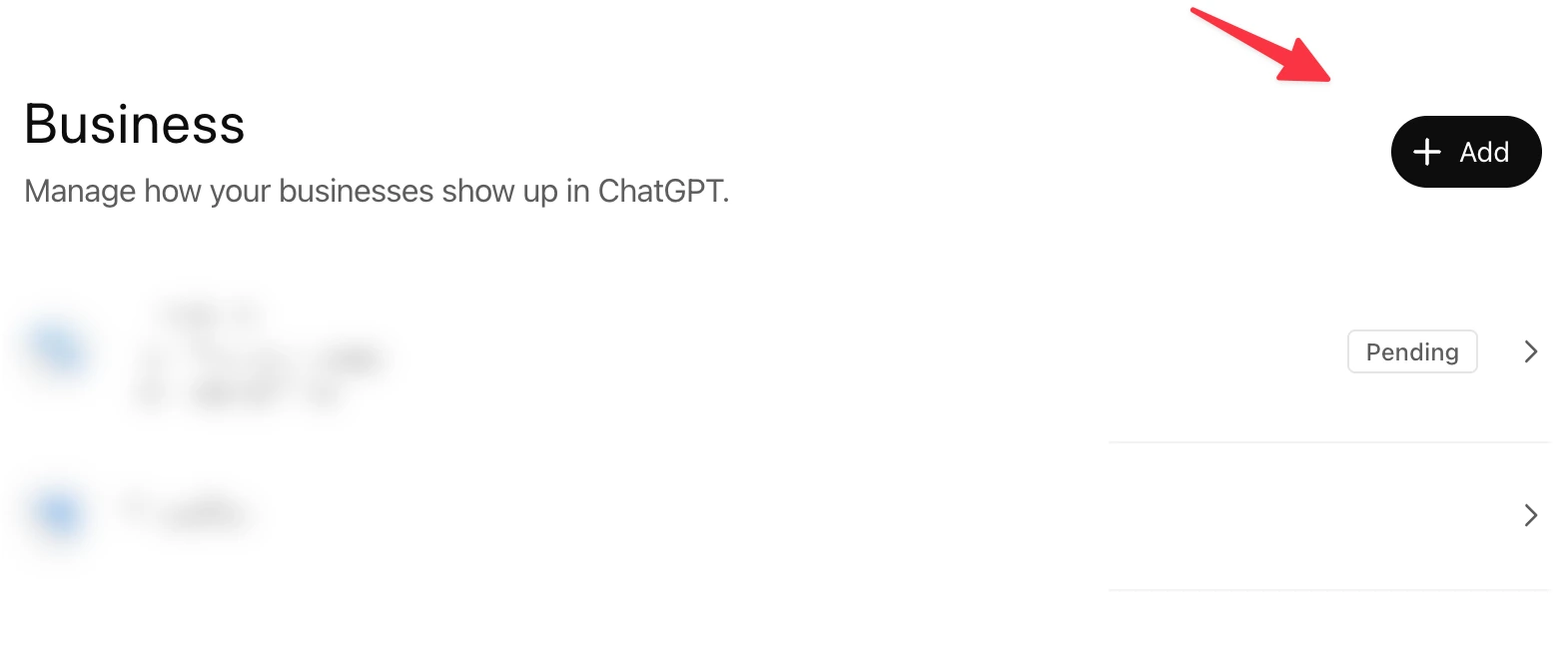
On the Business page, click Add. Search for the name clients know. Check the website and, if shown, the office location before choosing a match. Search the brokerage or team name if that’s the business you represent.
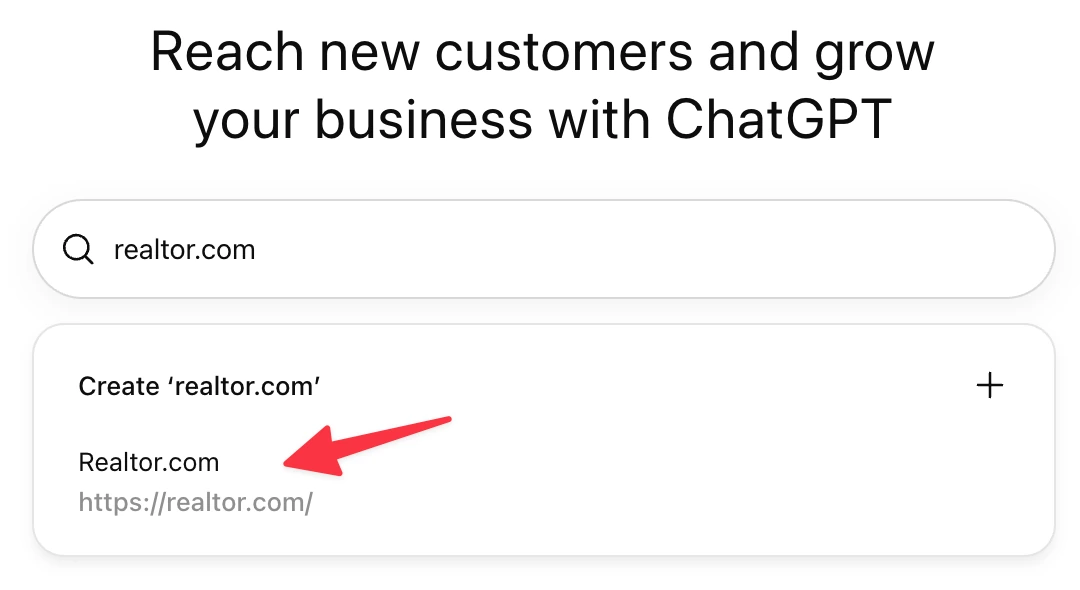
The screenshots use Realtor.com to demonstrate search. An agent’s directory profile is separate from the Realtor.com business listing, which belongs to its operator.
If you can’t find your brokerage or business, check whether your account offers a way to add it. The options vary by location and business type. If no option appears, contact OpenAI Support. Eligibility and missing listings
3. Start the claim and confirm your website
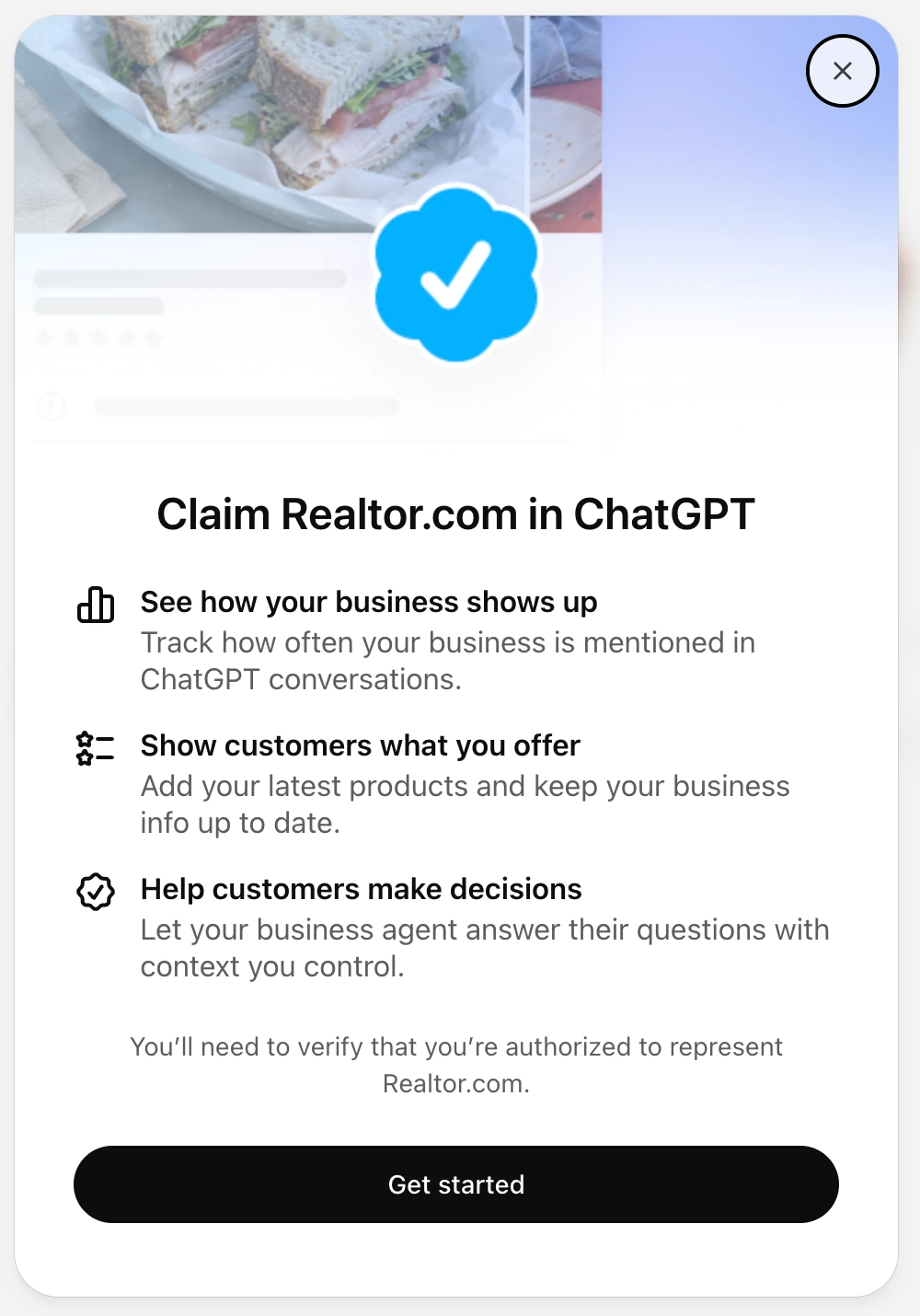
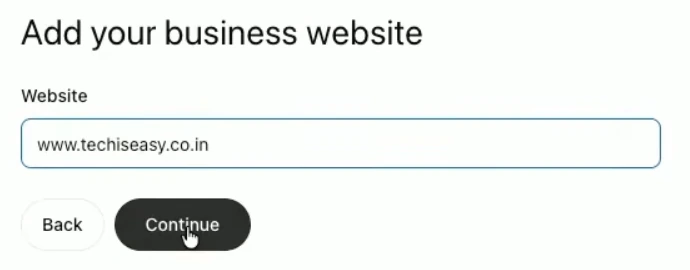
Open the matching listing and click Get started. If asked for a website, enter the site for the business you’re claiming and click Continue. Use the official brokerage or team site if you’re claiming that business.
4. Verify your connection to the business
Choose one of the methods Business Hub offers for your listing.
- Business phone receives a code by text or automated call.
- Business email receives a code at the address shown.
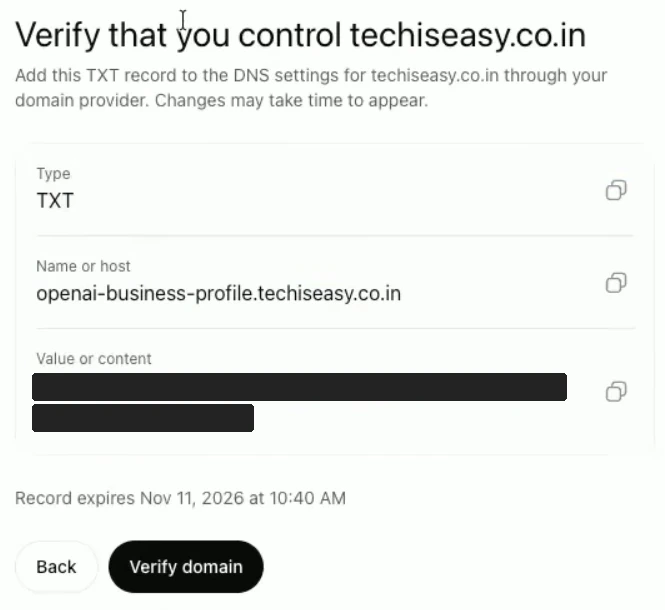
- Website domain uses a TXT record in your domain’s DNS settings.
For domain verification, copy the record type, host and value from your own screen. Ask the person who manages your brokerage’s domain to add it if you need help. Return to Business Hub and click Verify domain. DNS changes may take time to appear. OpenAI’s verification instructions
5. Add the details buyers and sellers need
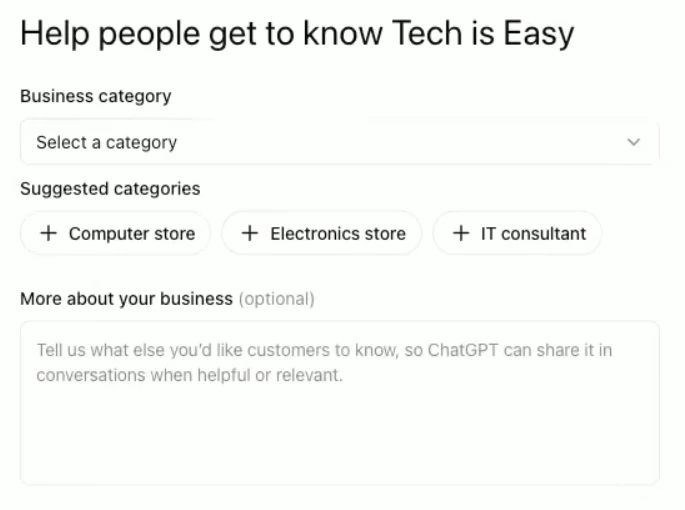
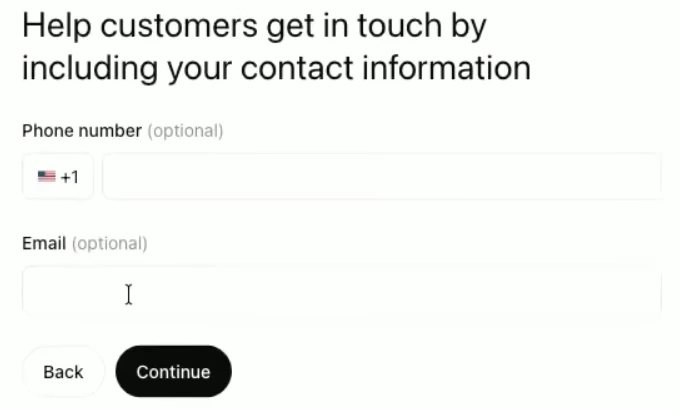
Follow the prompts in your account. Pick the category that fits the business. In the description, say where you work, who you help and what you do. Include your public business phone and email if asked.
Independent real estate brokerage serving New Braunfels and nearby Hill Country communities. We help homeowners sell residential property and guide buyers through local home purchases.
6. Check your business overview
Click Go to business overview and check the status. If the profile is saved as a draft, look in the overview to see which verification steps are still open.
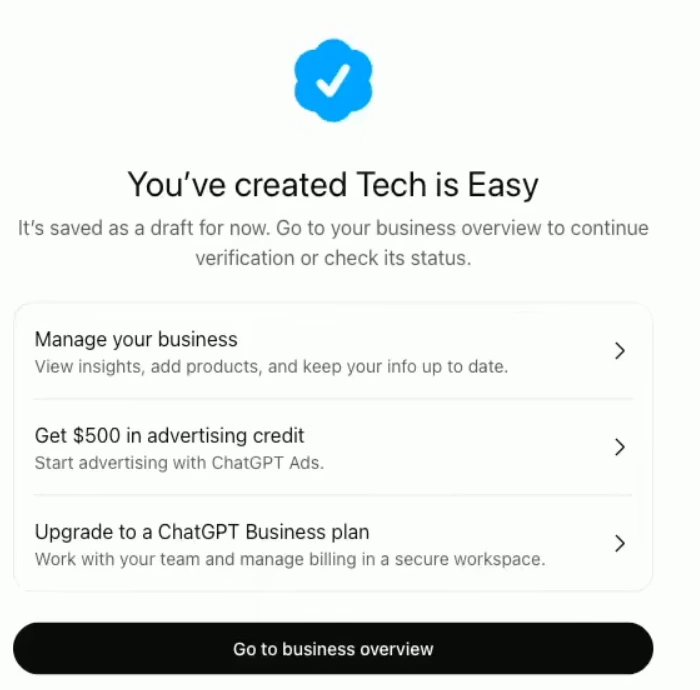
7. Complete Persona verification and wait for approval
OpenAI emails its decision on the claim. When Business Hub prompts you to verify with Persona, follow the instructions there. Have your government ID and any requested business records or proof of authority ready.
The blue verified badge appears after Persona approves your identity. You’ll need that approval to publish updates and see insights. If you create a new profile through Persona, check your public details before submitting because OpenAI publishes the profile when it approves the verification. Persona and review requirements
8. Review your approved profile
Check the website, description, category and logo after approval. Make sure the website leads people to a useful page for the business, such as your brokerage homepage or a page for buyers and sellers. Recheck it when your site, service area or contact details change. OpenAI reviews updates before they appear. Managing your business profile
Why this matters for your real estate business
A potential client may come across your business in a ChatGPT answer before they visit your website. A clear profile helps them work out whether you serve their area and handle the kind of purchase or sale they’re planning. ChatGPT makes its recommendations independently, so claiming a profile gives you a way to update your details without guaranteeing placement or leads. What claiming changes
After approval, Business Hub can show aggregated mentions, website clicks and discovery topics when enough activity is available. Use those signals to check where your website sends people and whether it answers the questions clients tend to bring to you. Business Hub insights
From Google search to ChatGPT
You already know to check what comes up when someone searches your name on Google. In ChatGPT, a seller can ask for brokerages that handle homes in a specific market and then ask follow-up questions. Keep your brokerage name, website and service areas consistent wherever buyers and sellers might look you up.
OpenAI introduced business profiles in beta on November 10, 2026. Business Agents have their own eligibility rules. For a brokerage, start with the profile and check the features Business Hub offers for your business. OpenAI’s announcement
If you get stuck
Tell me which step you reached and what Business Hub showed you. Contact me